How to Use a Free Online Photo Booth: Make Photo Strips in Your Browser (Step-by-Step)
Learn how to use a free online photo booth to make photo strips in your browser. Follow simple steps to take, customize, download and print photos.
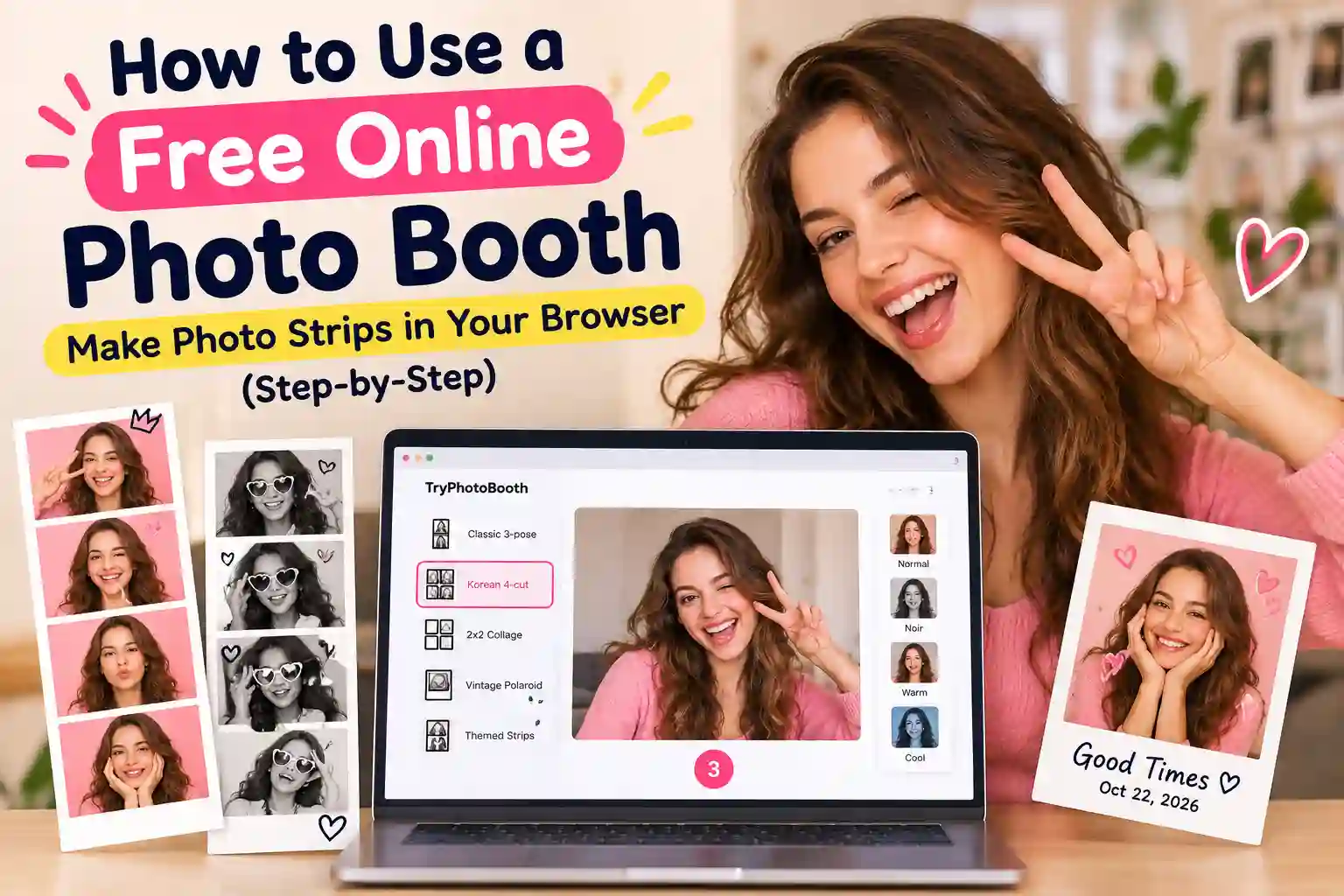
In 1925, a booth on Broadway in New York charged 25 cents for a strip of 8 photos. People waited about 10 minutes to see the prints come out. Today you can make a better strip in two minutes with a free online photobooth, and it won't cost you a cent. You open tryphotobooth.com in your browser, allow the camera, pick a layout, take your shots and download the strip. There is no app to install, no account to create and no rental company to call. This guide walks you through every step of using a free online photo booth on a phone, laptop or tablet. You will also learn how to light your face, plan your poses and fix a camera that won't start.
What Is a Free Online Photo Booth?
A free online photo booth, sometimes called a virtual photo booth, is a website that turns your device's camera into a photo booth. You take a few photos in a row, and the site arranges them into a strip, collage or Polaroid. You can then download it without paying or signing up for anything.
If you have ever searched for a photo strip maker online free of charge, this is exactly that kind of tool. It works through the browser you already use, such as Chrome, Safari, Edge or Firefox. Before the page can see you, the browser asks for your permission. MDN's guide to camera access explains that browsers only allow this on secure HTTPS pages. For more background, see what an online photo booth is and how it works.
Why No Download, No Signup and No Watermark Matter
A free online photo booth saves you time, phone storage and money because it runs inside a web page. You skip the app store and never hand over an email address. Your finished strip also comes out clean, with no logo across your face and no paywall on the best filters.
Most photo booth apps on the App Store and Google Play make you download them first. Many then ask for an account before you can save anything, and free plans often add a watermark. TryPhotoBooth avoids all of that because the whole booth lives on one page. Privacy is the other big reason to use it. The homepage says everything runs locally in your browser and that captured photos are not stored in its database. Your photos only leave your device if you submit a strip to the Weekly Spotlight gallery.
What You Need Before You Start
Using a free online photo booth takes very little gear. You need a device with a camera, a modern browser and a light in front of you. The whole session takes about two minutes from the first shot to the download.
Check these before you begin:
- An iPhone, Android phone, iPad, Chromebook, MacBook or Windows laptop
- The latest Chrome, Safari, Edge or Firefox
- A window, lamp or ring light facing you
- A friend, partner or pet if you want company
How to Use a Free Online Photo Booth: Step by Step
If you have never learned how to use an online photo booth, these seven steps make it simple. Most people finish their first strip in about two minutes, and after one try you can do it from memory at any party.
Step 1: Open the Photo Booth in Your Browser
Start by opening tryphotobooth.com, a free online photo booth that works in Safari, Chrome, Edge and Firefox. Tap the "Start Your Photo Strip" button on the homepage. If you already want the Korean 4-cut strip or the Vintage Polaroid, tap "Choose Layout", since both buttons lead to the booth.
One small detail saves a lot of trouble here. If you tapped our link inside Instagram, TikTok or Snapchat, the page opens in that app's own browser, which often blocks the camera. Tap the menu in the corner and open the page in Safari or Chrome instead.
Step 2: Allow Camera Access
When the booth loads, your browser asks if tryphotobooth.com can use your camera, so tap Allow. The live preview appears on screen a second later. You can then check your framing, your light and a filter like Noir before you take a single shot.
If the preview stays black, another app is probably holding the camera. Close Zoom, FaceTime, Microsoft Teams or any other tab that uses video, then reload the page. Phones with several lenses, like the iPhone 15 Pro, can also pick the wrong camera, and so can laptops with a USB webcam. Switch to the camera that frames your face best. If you blocked access by mistake, the fixes section below shows how to undo it.
Step 3: Choose Your Photo Strip Layout
Your layout decides how many photos you take and what the final strip looks like. Pick the Korean 4-cut strip for friends or the Classic 3-pose strip for a retro look. The 2x2 square collage suits Instagram, and the Vintage Polaroid adds a caption and a date stamp.
| Layout | Shape | Best for |
|---|---|---|
| Korean 4-cut strip | Tall 2x6 strip | Friends, K-pop fans, TikTok posts |
| Classic 3-pose strip | Tall strip with three frames | Retro party strips |
| 2x2 square collage | Square grid of four photos | Instagram posts |
| Vintage Polaroid | Instant-film frame with caption and date | Couples, weddings, keepsakes |
| Themed strips (Hearts, Dog, Vintage, Solace) | Strip with a printed design | Birthdays, Valentine's Day, pet lovers |
The 4-cut strip is a favorite on TikTok and Pinterest, and the style comes from South Korea. Chains such as Life Four Cut, Photoism and Haru Film brought booth strips back in the late 2010s. They later opened in the US and UK too. Our photo booth layouts and frames guide shows each option side by side.
Step 4: Pick a Filter or AR Overlay
Choose your filter before you start shooting, because the booth shows the effect live on your face. This online photo booth with filters offers looks like Flash!, Natural, Vintage, Noir, Cute and Vibrant. It also has face-tracked overlays that add dog ears, hearts or a crown in real time.
Picking first matters because you pose differently for each look. Noir makes you want a serious, movie-star face, while Cute Dog and Sparkle Hearts work best with a big grin. Royal Crown suits birthdays, and Retro Shades or Star Halo fit a silly group shot. If you want a softer finish, Soft Beauty Glow and Golden Hour warm up skin tones. Our photo booth filters guide takes a closer look at each one.
Step 5: Take Your Photos
Once your layout and filter are set, start the session and the booth captures each frame in turn. Change your pose between frames and look into the lens instead of the screen. Keep your face near the middle of the preview, too.
Looking at the lens feels strange at first, but it makes your eyes meet whoever sees the strip later. On a laptop, the webcam sits in the top edge of the screen, and on a phone it is the small dot near the top. Keep your arms and props inside the frame, since anything at the edge may be cropped. If someone blinks or a shot comes out blurry, look for a way to redo it. You can also shoot the whole strip again, because it costs nothing.
Step 6: Customize Your Strip with Frames and Stickers
After the last shot, you can style your strip before saving it. Pick a frame from more than 100 colors and add stickers like hearts and shapes. You can also add a soft film grain, or type a caption and date stamp on the Vintage Polaroid.
This part works like a photo strip editor online, and it is where a strip starts to feel personal. A pastel pink frame with heart stickers suits a Valentine's Day strip. A black frame with film grain gives you the look of a 1990s mall booth. For a birthday, the Polaroid caption can hold a name and an age, and the date stamp shows when it was taken. Keep the stickers small, so they never cover anyone's face.
Step 7: Download, Print or Share Your Photo Strip
When your strip looks right, download it to your device as a high-resolution image. From there you can print it at 300 DPI or post it to Instagram Stories, TikTok or Pinterest. You can also send it to friends or submit it to the TryPhotoBooth Weekly Spotlight gallery.
On iPhone, Safari usually saves the file in the Files app, under Downloads. Open it, tap Share and choose Save Image to move it into Photos. On Android and laptops, it goes to your normal Downloads folder.
To print photo strip copies at home, place two 2x6 strips side by side on one 4x6 sheet. That size suits a Canon SELPHY CP1500 or an HP or Epson photo printer. Walgreens and CVS can also print the sheet, often on the same day. Since this is a free online photo booth, you can make a fresh strip whenever a print goes wrong.
What Makes a Browser Photo Strip Look Good
A free online photo booth can match a mall booth when three things line up: a sharp export, film filters and a layout people love. TryPhotoBooth exports at 300 DPI, so your strip prints crisp at full size instead of looking pixelated.
That sharp export is what separates a real photobooth strip maker online from a simple camera filter. The film-style filters copy the color and grain of old booth prints. That is why a 1970s Vintage strip feels like it came out of a real machine. The look itself has a long history. Sega and Atlus launched Print Club, Japan's first purikura sticker booth, in February 1995. About 45,000 machines had been sold by 1997, and Korean 4-cut booths later carried that sticker style into the 2020s.
Who Uses a Free Online Photo Booth?
Anyone with a phone, tablet or laptop can use it, so hosts set it up at parties, weddings, proms and office events. The sections below show the best layout and filter for each kind of event, plus a few quiet-night ideas.
House Parties and Birthdays
For a house party or birthday, prop an iPad or phone on a stand near a plain wall and let guests take turns. The Hearts strip and the Classic 3-pose strip both work well. The Royal Crown overlay also makes the birthday person the star of every frame.
Tape the link next to the stand so guests can open the booth on their own phones too.
Weddings, Bridal Showers and Hen Parties
At weddings, bridal showers and hen parties, the Vintage Polaroid layout is the best match because you can add the couple's names and the date. A free online photo booth on a side-table laptop, set to Noir, gives guests classic black-and-white photos for the album.
Ask the couple to pick one frame color that matches the wedding flowers, so every strip looks like part of the same day.
School Events, Proms and Graduations
Schools can run a free online photo booth at prom, graduation or spirit week with a laptop on a table and a printed sign. Students love making Class of 2027 strips in the Korean 4-cut layout, and a frame in the school colors ties every strip to the event.
Test the camera before the event starts, because many school Chromebooks block camera access through admin settings. A personal laptop or an iPad avoids that problem.
Corporate Events and Office Parties
At office parties, conferences and team days, a free online photo booth gives staff a fun break without a rental bill. Choose a frame in your brand color and use the 2x2 collage for team shots. Then share the best strips on your company's LinkedIn page.
It works well at holiday parties and product launches too, since every guest leaves with a keepsake.
Couples, Friends and Everyday Fun
You don't need a big event to make a strip. Couples use the 4-cut layout for date nights and anniversaries. Friends make strips at sleepovers and on road trips, then post them on TikTok or keep them as phone wallpapers.
Two people can share one screen easily, so sit close, lean in and switch poses on every frame.
Free Online Photo Booth vs. Renting a Photo Booth
A free online photo booth costs nothing and sets up in two minutes. A rental booth comes with a booking fee and needs staff, space and power. Rentals win on instant prints for big crowds, but a browser booth wins on price, speed and privacy.
| Feature | Free online photo booth | Rental photo booth |
|---|---|---|
| Cost | Free | Paid booking, often charged by the hour |
| Setup | Open a web page | Delivery, setup and pack-down by staff |
| Prints | Download, then print at home or at Walgreens or CVS | Instant prints on site |
| Guests | Everyone can use their own phone at once | One machine and one line |
| Privacy | Photos processed on your device | Photos often uploaded to the company's gallery |
| Look | Korean 4-cut, Polaroid and film filters | Depends on the company's templates |
A rental still makes sense for a 200-guest wedding where you want prints in hand by the end of the night. For most birthdays, school events and small parties, the browser booth gives you the same strips without the bill. Our guide on how to get a photo booth without hiring one breaks down the real costs.
Free Online Photo Booth vs. Photo Booth Apps
A browser booth beats most photo booth apps because there is nothing to install and nothing to pay for. Apps from the App Store or Google Play take up storage and often ask for an account. Many free versions also add a watermark or charge for the best filters.
| Feature | Free online photo booth | Typical photo booth app |
|---|---|---|
| Download | None, it runs in your browser | Takes storage space on your phone |
| Signup | Not needed | Often required |
| Watermark | None | Common on free plans |
| Paywall | Every layout and filter is free | Filters often locked behind a subscription |
| Works on | Any device with a browser | Only the phone you installed it on |
Apps can still be handy for editing old photos offline. For a quick strip with friends, though, a free online photo booth in your browser is faster.
Getting the Best Results
Better strips from a free online photo booth come from four small habits: good light, a steady camera, the right filter and planned poses. Each tip below takes under a minute.
Face the Light
Light has the biggest effect on how your strip looks, and it should always be in front of you. Sit facing a window during the day. At night, put a lamp or ring light just behind your phone, so your face looks bright and even.
Never sit with a bright window behind you, because the camera will turn your face into a dark shadow. In a dim room, switch to the Noir filter, since black and white hides grain better than color.
Use a Tripod or Phone Stand
A phone tripod or a simple stand keeps every frame steady and the same size. Set the camera at eye level and stand about an arm's length away. Use the rear camera when a friend can start the session for you, since it is much sharper.
Stacked books on a shelf also work if you don't own a stand, as long as the phone can't slide.
Match the Filter to the Mood
The right filter makes a strip feel like it belongs to the moment. Use Vintage or 1970s Vintage for a Y2K or retro theme, and Noir for weddings and formal events. Cute, Sparkle Hearts and Cute Bunny suit friends, sleepovers and birthdays.
Golden Hour fits summer barbecues, and Hazy Days gives a dreamy look to beach trips and travel photos. For holiday parties, try a themed strip with a matching frame color, such as red for Christmas or orange for Halloween. For an early-2000s Y2K look, pair the Vintage filter with a lilac or silver frame.
Plan Four Poses Before You Shoot
Planning your poses before you start keeps a 4-cut strip from looking like the same photo four times. A simple order works for almost everyone. Start with a big smile, then a silly face, then a hug or a point at the camera, and finish with a candid laugh.
Agree on the order before you press start, so nobody freezes on the next frame. Couples can swap the hug for a kiss on the cheek, and groups can add a jump in the last frame.
Camera Not Working? Quick Fixes
Most camera problems in a free online photo booth come from a blocked permission or another app using the camera. A link opened inside a social app causes most of the rest. The table below shows each fix, and most take under a minute.
| Problem | Likely cause | Fix |
|---|---|---|
| No camera prompt | The link opened inside Instagram, TikTok or Snapchat | Open the page in Safari or Chrome |
| Black screen | Zoom, Teams or FaceTime is using the camera | Close the other app and reload |
| Camera blocked | You denied permission earlier | Set the site's camera to Allow |
| Wrong lens | A multi-lens phone or USB webcam | Switch to the right camera |
| School Chromebook blocks it | Admin settings | Use a personal device |
| Dark or grainy photos | The light is behind you | Face a window or ring light |
| Mirrored preview | The live preview is flipped | Check the saved file before printing |
| Can't find the iPhone download | It saved to Files, under Downloads | Open Files, tap Share, then Save Image |
In Chrome, go to Settings, then Privacy and security, then Site settings, then Camera, and set the site to Allow. In Safari on iPhone, tap the aA menu, open Website Settings and set Camera to Allow. More Safari fixes are in our photo booth on iPhone without an app guide.
Frequently Asked Questions
Is there a free online photo booth with no download or signup?
TryPhotoBooth is a free online photo booth that runs in your browser, so you never install an app or create an account. You open the site, allow the camera and start shooting, and every layout, filter and frame is free to use from the first strip.
How do I make a photo strip in my browser?
To make photo strips in your browser, open tryphotobooth.com, allow camera access, choose a layout and filter, and take your photos. Then add a frame or stickers and download the finished strip. The whole process takes about two minutes on any phone or laptop.
Why isn't my camera working in the online photo booth?
The usual cause is a blocked camera permission or another app, such as Zoom or FaceTime, using the camera. A link that opened inside Instagram or TikTok can also block it. Close other video apps, open the site in Safari or Chrome, and tap Allow when asked.
Does an online photo booth work on iPhone and Android?
A free online photo booth like TryPhotoBooth works on both, as long as you use a modern browser. On iPhone and iPad, open it in Safari or Chrome, and on Android, Chrome works best. It also runs on Windows laptops, MacBooks and Chromebooks with a built-in or USB webcam.
Are my photos saved or uploaded anywhere?
TryPhotoBooth says everything runs locally in your browser and that captured photos are not stored in its database. Your strip only leaves your device when you download and share it yourself, or when you choose to submit it to the Weekly Spotlight gallery.
How do I print a photo strip at home?
Download your strip, place two 2x6 strips side by side on a 4x6 photo sheet, and print it at 300 DPI. A Canon SELPHY CP1500 or any HP or Epson photo printer works well. You can also order the same sheet as prints from Walgreens or CVS.
Can I use an online photo booth with friends or a partner?
You can, and it works just like a real booth at the mall. Squeeze everyone into one frame, change poses together on each shot, and pick the Korean 4-cut layout for groups. Couples tend to love the Hearts strip and the Vintage Polaroid, where you can add both names and the date.
Does the free online photo booth add a watermark?
No watermark is added to your strip at any point. You download a clean, high-resolution image with only the frame, stickers and caption you chose. It is ready for printing, framing or posting on Pinterest and Instagram, with no logo in the corner.
Start Your First Photo Strip
You now know every step, from opening the page and allowing the camera to posing and printing. Grab your phone or laptop and find a spot facing the light. Then make your first strip with TryPhotoBooth, the free online photo booth that needs no app or account. Start with the Korean 4-cut layout and the Vintage filter. Share your favorite strip on Instagram or TikTok and tag @tryphotobooth so we can see it.
Keep Reading
- Photo Booth Layouts and Frames: every layout and frame explained
- Photo Booth Filters Explained: when to use each filter
- Photo Booth Without Hiring: get a booth at your event for free
Ready to try this in your browser?
Launch our free 3D studio, test out vintage filters, and save your photo strip instantly.