How to Use a Photo Booth on iPhone Without Downloading an App (2026 Guide)
Learn how to use a photo booth on iPhone for free without downloading an app. Create photo strips easily with Safari.
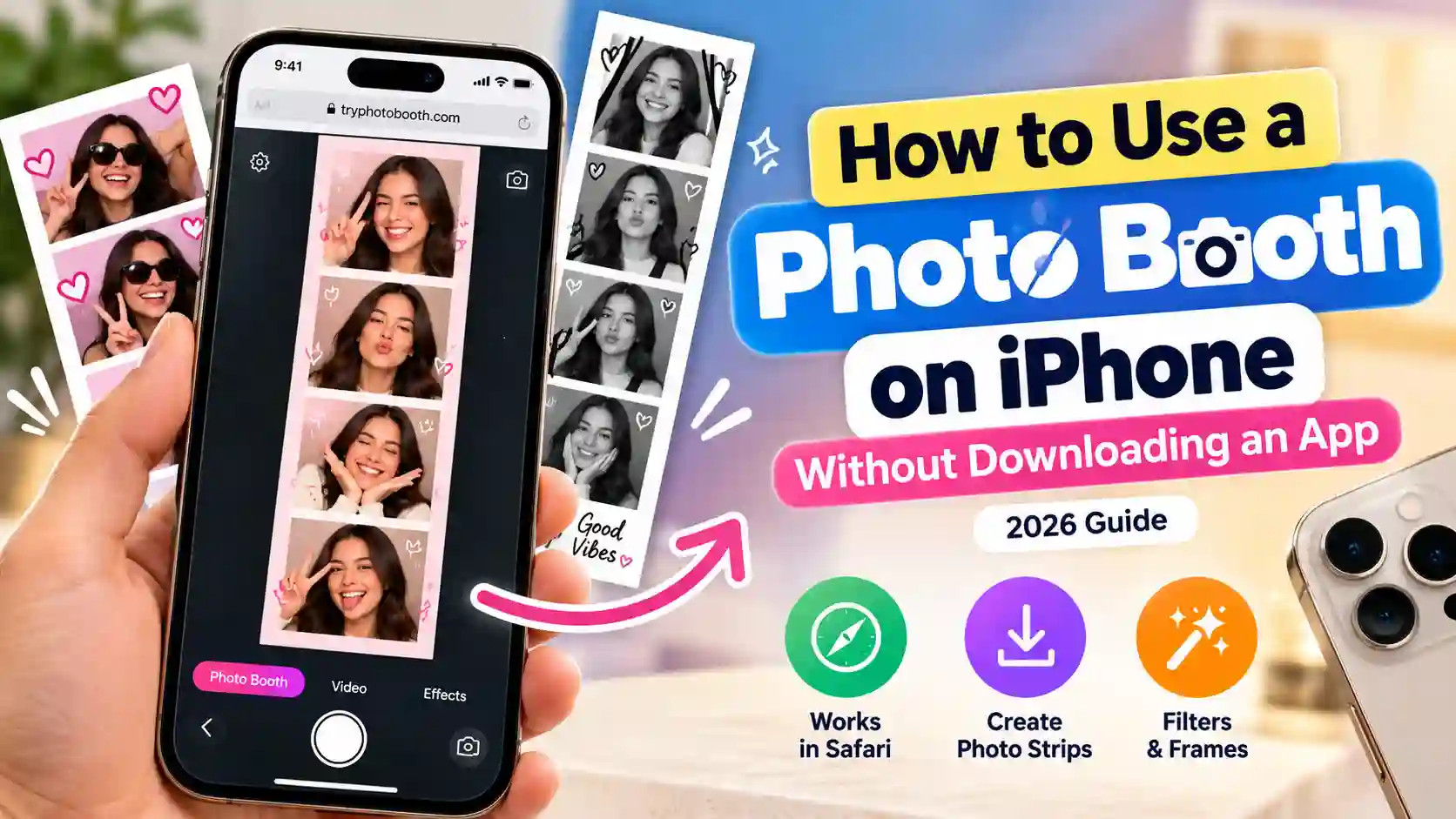
You are at a birthday party, everyone wants a cute photo strip, and somebody asks why your iPhone does not have the Photo Booth app they remember from their Mac. Apple built Photo Booth for the Mac and never released an iPhone version, but that does not mean you need to fill your storage with another download. You can set up a photo booth on iPhone in a couple of minutes with tools that already come with the phone, like Safari, the Camera app, and the Shortcuts app. Every step here follows the iOS 26 layout, so the buttons and menus match what you will see on your screen today. By the end, you will know which photo booth on iPhone method gives you a real 4-cut strip, which one works offline, and how to fix the camera problems that stop most people halfway.
3 Ways to Get a Photo Booth on iPhone Without an App
There are three free ways to get the classic booth experience, and each one suits a different kind of moment. The table below compares them, so you can pick the right photo booth on iPhone setup before your guests start lining up.
| Method | Needs internet? | Makes the strip for you? | Filters and frames | Best for |
|---|---|---|---|---|
| Online photo booth in Safari | Yes | Yes, automatically | Many filters, frames and stickers | Parties, couples, aesthetic strips |
| Camera app timer and burst | No | No, you pick the shots | Basic Apple filters | Quick group photos with no signal |
| Shortcuts photo strip | No | Yes, after a short setup | None | Offline strips you make again and again |
Method 1: Use an Online Photo Booth in Safari
The quickest photo booth on iPhone is a website that uses your camera through Safari, runs a countdown, and turns your shots into a finished design. Since everything happens inside the browser, you get booth-style strips without installing anything or creating an account.
How to Start a Browser Photo Booth
TryPhotoBooth is a free online photo booth that makes Korean-style 4-cut strips, 3-shot strips, Polaroid-style prints, and 2x2 collages, so it is an easy place to start. Here is the full process from opening the page to saving your strip:
- Open TryPhotoBooth in Safari.
- Tap Allow when iOS asks whether the site can use your camera.
- Pick a design from the layout page, such as the classic 4-cut vertical strip.
- Choose a filter like Vintage, Noir, or Golden Hour, then pose for each shot.
- Add a frame color or a few stickers, then tap download.
Is It Safe to Let a Website Use Your Camera?
Feeling unsure before you give a website camera access is normal, because some booth sites upload your pictures to their own servers. Before you tap Allow, look for a page that uses HTTPS and clearly explains what happens to your photos. TryPhotoBooth processes every photo on your device and does not store it in a database, which you can confirm on its privacy policy page.
Camera Not Working in Safari? 4 Quick Fixes
When your photo booth on iPhone shows a black or frozen screen in Safari, the camera itself is almost never broken. One of these four simple fixes usually brings the live preview back within a minute.
You Denied Camera Access Earlier
This is the most common cause, and it feels confusing because a blocked website cannot ask for permission a second time. To fix it, open Settings, go to Apps, then Safari, then Camera, and change the option to Ask or Allow. Reload the booth page afterward, and the permission prompt should appear again.
The Site Does Not Use HTTPS
Safari only allows the camera on secure pages, so a site with a plain HTTP address will never show your face.
Another App Is Holding the Camera
Your iPhone camera can only serve one app at a time, so a FaceTime call running in the background can quietly block it. Close that call completely, then reload the booth page.
You Opened the Link Inside Instagram or TikTok
Links you tap inside Instagram, TikTok, or WhatsApp open in a small built-in browser that often blocks the camera. Tap the menu in that small browser, choose Open in Safari or Open in Browser, and the camera should work as normal.
Where Your Photo Strips Save on iPhone
Saving from any photo booth on iPhone works a little differently than on a laptop, which is why many people think their download failed. Some downloads go to the Files app inside the Downloads folder, while others let you save the image straight into the Photos app. If a strip seems to vanish, check Files before taking the photos again, because it is almost always sitting there. To move it into your camera roll, open the file, tap Share, and choose Save Image. For a party, create an iCloud Shared Album before guests arrive and leave the album link on a small card beside the phone.
Add a Web Photo Booth to Your Home Screen
You can turn your favorite photo booth on iPhone into an app-like icon without downloading anything. Open the booth in Safari, tap the Share button, and choose Add to Home Screen. The booth then opens full screen from its own icon, which hides the address bar and makes it harder for guests to leave the page by accident.
Method 2: Turn the iPhone Camera App Into a Photo Booth
The built-in Camera app cannot build a strip by itself, but its timer and burst features give you an offline photo booth on iPhone with no website needed.
Where to Find the Camera Timer in iOS 26
Apple moved several controls in the iOS 26 Camera app, so the timer is no longer where many people expect it. Open the Camera, stay in Photo or Portrait mode, and tap the Camera Controls button near the top of the screen. A row of options appears at the bottom, and the small clock icon in that row is the camera timer. Choose 3, 5, or 10 seconds, prop your phone up, and tap the shutter button to start the countdown.
Use the Timer and Burst to Capture Several Poses
The trick that makes the Camera app behave like a booth is that the timer takes a burst of 10 photos when Live Photos is switched off. That gives everyone time to change poses during one countdown, and you can keep only the best frames later. Open the burst in the Photos app, tap Select, and mark the shots you want to save.
Shoot Hands-Free With AirPods or Apple Watch
A remote shutter lets you stand back with your group instead of running to the phone before every shot. Since iOS 26, supported AirPods can work as a camera remote once you turn on the Camera Remote option in your AirPods settings. The Camera Remote app on Apple Watch also shows a live preview, so you can check the frame from your wrist.
Method 3: Make a Photo Strip With the Shortcuts App
The Shortcuts app comes preinstalled, and with four actions it turns into your own photo booth on iPhone that takes several pictures in a row and stacks them into a real strip.
Build a One-Tap Photo Strip Shortcut
Open Shortcuts, tap the plus button to create a new shortcut, and add these actions in this order:
- Repeat, set to 4 times.
- Take Photo, placed inside the Repeat block, with Show Camera Preview turned on.
- Combine Images, placed after the Repeat block, set to combine the Repeat Results vertically.
- Save to Photo Album, set to Recents or a new album for strips.
Name the shortcut something clear like Photo Strip, then run it from the Shortcuts app or your Home Screen. Each round opens the camera for one shot, and after the fourth picture your finished photo strip appears in the Photos app.
Turn Photos You Already Took Into a Strip
A second shortcut can join pictures you already have, such as your favorite frames from a burst. Use Select Photos with Select Multiple turned on, then Combine Images set to Vertically, then Save to Photo Album. Some people on older iOS versions have seen the vertical option reset itself, so check that setting before you run it.
Use the Back Camera When You Can
The front camera is fine for quick selfies, but the back camera on each iPhone has a bigger sensor and a sharper lens. That difference matters for every photo booth on iPhone because most booth pictures happen indoors in the evening, exactly when the front camera starts to look grainy. Whenever the phone is propped up with the timer running, switch to the back camera instead. A stack of books or a small stand at chest height frees both hands and avoids the arm's-length angle that makes so many selfie strips look the same.
Why Your Photo Booth Picture Looks Mirrored (and How to Fix It)
If the saved picture from your photo booth on iPhone looks slightly off compared with the preview, nothing is wrong with your phone. The preview works like a bathroom mirror so you can frame yourself easily, but the final photo shows you the way other people see you. Because no face is perfectly symmetrical, that unflipped version looks strange to you even though it looks normal to everyone else. If you prefer the mirrored look in the Camera app, open Settings, go to Apps, then Camera, and turn on Mirror Front Camera.
Lighting Tips That Make Any Photo Booth on iPhone Look Better
Good light improves your strips more than a newer phone ever will, and most party lighting works against you. Overhead bulbs throw dark shadows under the eyes and nose, so place a lamp at face height about one meter in front of the group instead. Never stand with a bright window behind you, because the iPhone exposes for the window and turns everyone into a dark outline. If the room is still dim, a black-and-white filter like Noir hides the color noise that phone sensors create in low light.
Does an Old iPhone Work as a Photo Booth?
An older handset can run a browser photo booth on iPhone without trouble, and it can even be the smarter choice for a party. The browser matters more than the camera here, so any model that still gets recent iOS updates will open the booth in Safari. You can leave an old phone plugged in on a table all evening without giving up the one you need for calls.
iPhone Settings to Check Before an Event
If your photo booth on iPhone will run for a few hours, four quick settings prevent the problems that usually ruin a home setup.
- Plug it in. The camera drains the battery quickly, and a booth that dies halfway through the party is the most common failure.
- Turn off Auto-Lock. Go to Settings, then Display & Brightness, then Auto-Lock, and choose Never so the screen stays awake between guests.
- Turn on Do Not Disturb. Open Control Center and switch on the Do Not Disturb Focus so messages do not pop up over the countdown.
- Turn on Guided Access. Go to Settings, then Accessibility, then Guided Access, and triple-click the side button on the booth page to lock the phone to that one screen.
Frequently Asked Questions
Does iPhone have a Photo Booth app like the Mac?
No, Apple made Photo Booth for the Mac and has never released an iPhone version of it. You can still get the same photo booth on iPhone experience with a browser booth, the Camera app timer, or a Shortcuts strip.
How do I take 4 photos in a row on iPhone?
The easiest way is a browser booth like TryPhotoBooth, which takes four shots for you and arranges them into one strip. Without internet, a Shortcuts action that repeats Take Photo four times does the same job.
How do I stop the iPhone timer from taking 10 photos?
Turn on Live Photos in the Camera app before you start the countdown. Your iPhone then saves a single Live Photo instead of a burst, and you can still choose a different key frame later.
Why is my iPhone camera not working in Safari?
In most cases, camera permission was denied for that site at some point earlier. Change it to Ask or Allow in the Safari camera settings, reload the page, and make sure no other app has the camera open.
Can I make a photo strip on iPhone for free?
Yes, and both free options work without downloading anything from the App Store. TryPhotoBooth creates a styled strip in Safari in under a minute, while Shortcuts can join your own pictures into a plain vertical strip.
Final Thoughts
You do not need an extra app to enjoy a fun photo booth on iPhone, because everything you need is already on your phone. Use TryPhotoBooth.com in Safari for styled strips, the Camera app timer when there is no signal, and Shortcuts when you want an offline strip in one tap. Start your first strip today and see which style your friends love most.
Keep Reading
Ready to try this in your browser?
Launch our free 3D studio, test out vintage filters, and save your photo strip instantly.