How to Use a Photo Booth on a Laptop or PC (No App, No Software)
Learn how to use a photo booth on a laptop or PC without an app. Set up your webcam, allow camera access, take photos, create photo strips, and save your pictures.
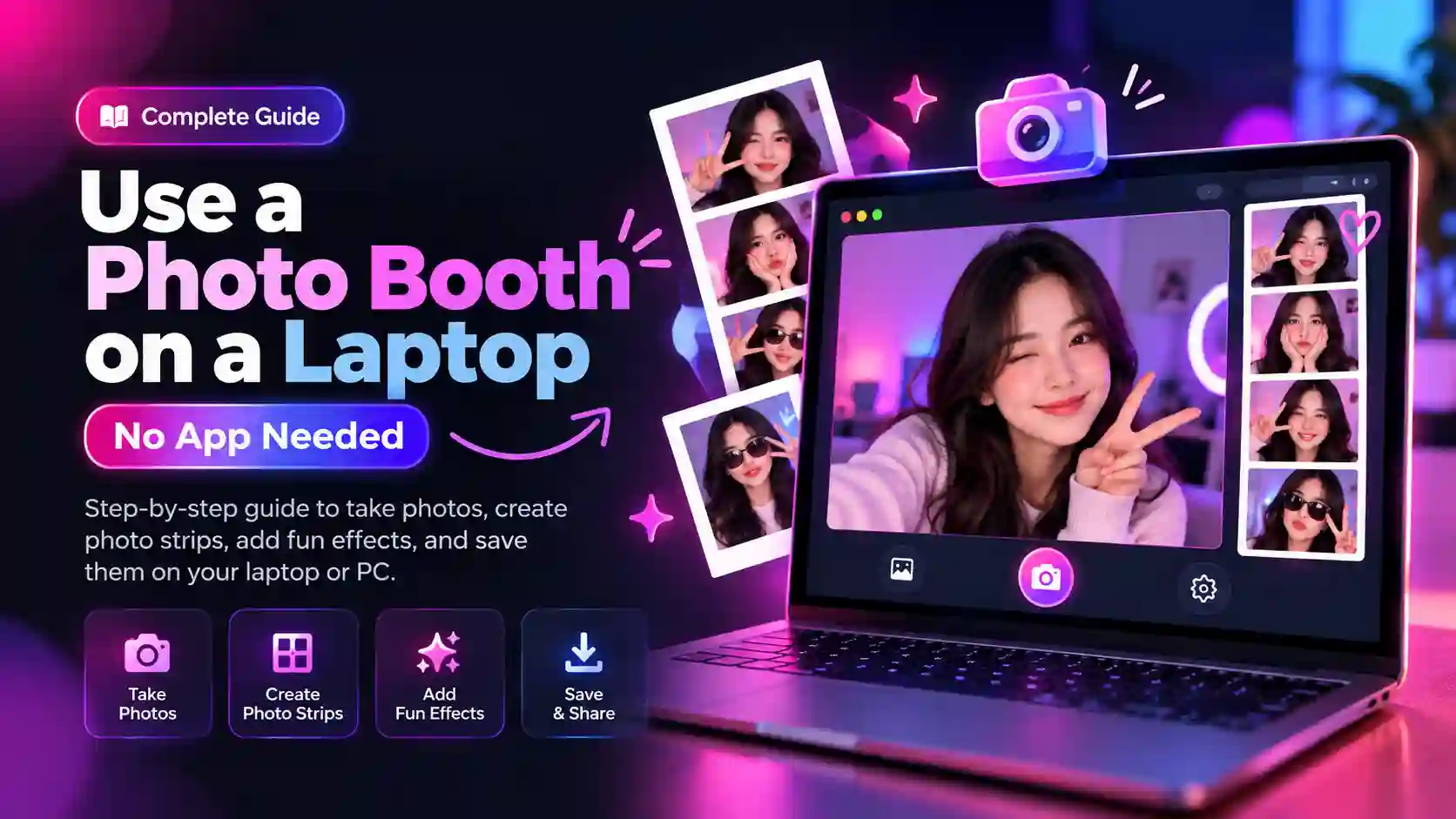
Want to turn your laptop into a photo booth without installing an app or extra software? A built-in webcam and a browser-based photo booth are often all you need to take selfies, group pictures, and fun photo strips from your computer. A photo booth on a laptop is useful for birthdays, weddings, family gatherings, school events, or even a quick photo session at home. You can open the photo booth in your browser, allow camera access, choose a layout, and start taking pictures in just a few steps.
The best part is that you do not need a complicated setup. In this guide, you will learn how to set up a photo booth on a laptop, position the camera for better pictures, fix common webcam problems, and use an external webcam or phone when needed.
What You Need to Use a Photo Booth on a Laptop
You do not need complicated equipment for basic laptop photo booth use. In most cases, the setup needs only a computer, camera, browser, and suitable lighting.
Laptop or Desktop PC
Windows laptops, Macs, Chromebooks, and desktop PCs can all work when they support the browser and camera features required by the photo booth. Laptops are convenient because the screen, keyboard, battery, and webcam are already built into one device. Desktop PCs can work too, although they often need an external webcam.
Built-In or External Webcam
Most laptops have the webcam built into the top edge of the screen, which is enough for casual photos. For group shots or better camera positioning, USB webcams offer more flexibility. You can place one higher, farther away, or at a better angle without moving the laptop itself.
Modern Web Browser
Chrome, Edge, Safari, Firefox, and other modern browsers can provide camera access when the website and device support it. The photo booth runs directly in the browser, so dedicated photo booth software is normally unnecessary.
Good Lighting and a Stable Surface
Even a working webcam can produce poor pictures when the room is dark. Place the laptop on something steady and keep the main light in front of the people rather than directly behind them. A desk, table, or sturdy stand works better than holding the computer during the photo session.
How to Use a Photo Booth on a Laptop in 8 Simple Steps
Once your computer and camera are ready, the actual setup only takes a few steps. If you are new to browser-based photo booths, you can first learn what an online photo booth is and how it works before setting up your laptop.
1. Open a Browser-Based Photo Booth
Start by opening the online photobooth in your browser. A browser photo booth runs from a webpage, so there is normally no need to install dedicated photo booth software. Choose a service that provides the features you need, such as filters, frames, a countdown, multiple photos, or a photo-strip layout.
2. Allow Camera Access
When the photo booth asks to use your camera, select the browser option that allows camera access. The exact wording can vary between browsers. A camera icon or permission message may appear near the address bar, and the browser may remember your choice for that website. Camera access is necessary because the webpage needs a live camera stream to show your preview and capture pictures.
3. Choose the Correct Camera
A laptop may have more than one available camera.
For example, you might have:
- the built-in laptop webcam
- a USB webcam
- another compatible camera device
Check the photo booth's camera selector when more than one option is available. Pick the camera that gives you the framing and image quality you want.
4. Choose a Photo Layout
Some online photobooths let you take a single picture, while others can create several pictures in one session. For a classic booth-style result, choose a layout that takes multiple photos and combines them into a photo strip. A four-picture layout is a common choice for party and event photos. You may also find options for filters, frames, stickers, backgrounds, or other effects.
5. Position the Laptop
Camera position has a bigger effect on your pictures than many people expect. A laptop sitting flat on a low coffee table can point the webcam toward people's chins instead of their eyes. Raise the screen closer to face level when possible, and leave enough distance for everyone to fit comfortably inside the frame. For a group photo, check the preview before starting the countdown. Make sure the people at the edges are not cut off.
6. Start the Countdown
Start the photo booth's countdown once everyone is inside the frame. A countdown gives people time to look toward the camera, adjust their position, and smile before the picture is captured. Some photo booths let you change the countdown length, which can be useful when photographing a larger group.
7. Take Your Photos
Stay in position while the countdown runs. For a multi-picture photo strip, people can change their pose between shots. That makes the final strip more interesting than taking the same pose several times. Keep movements controlled during each countdown so the webcam has a better chance of capturing a sharp image.
8. Edit and Download Your Photo Strip
After the pictures are captured, the photo booth may show editing options before creating the final image. Depending on the service, you might be able to add a frame, filter, sticker, text, or other effect. When the result looks right, use the available save or download option. The exact download behavior depends on the website and browser. Some photo booths save the finished image directly to your device, while others may provide another sharing or saving option.
Where Should You Put the Laptop for Better Photos?
The laptop's position affects both the camera angle and how comfortable people feel while using the photo booth.
Raise the Camera to Face Level
A webcam positioned far below eye level can create an unflattering upward angle. Raising the laptop on a stable stand, box, or sturdy surface can bring the camera closer to face level. Make sure the setup remains stable. A better angle is not worth a laptop falling during a party.
Put the Light in Front of You
A window or lamp behind the people can make faces look dark because the camera is exposed to the brighter background. Whenever possible, put the main light in front of the people being photographed. Soft, even light usually produces a more balanced webcam image.
Leave Enough Distance From the Webcam
The camera should have enough space to capture everyone comfortably. A laptop placed too close can cut off faces and shoulders, while a setup that is too far away may make people appear very small. Use the camera preview to find a comfortable distance before guests start taking pictures.
Keep the Background Clean
You do not need an expensive backdrop for a laptop photo booth. A clean wall, simple curtain, decorated party area, or uncluttered room can work well. Removing distracting objects from behind the group can make the final photo look much cleaner.
Keep the Laptop Plugged In
A long photo session can use more battery than normal browsing, especially when the screen stays bright and the camera runs continuously. For a wedding, birthday, or other longer event, keeping the laptop connected to power is a simple way to avoid an unexpected shutdown.
How to Set Up a Laptop Photo Booth for a Party or Event
A DIY laptop photobooth can work well for a small party when the setup is planned before guests arrive. Start by choosing a location with enough space for people to stand in front of the camera. Put the laptop on a stable table or stand, raise the camera to a suitable height, and check the framing with two or three people before the event begins. Lighting deserves attention too. A bright window directly behind guests can make their faces look dark, while a light positioned toward them usually gives the webcam a better view.
Leave enough room for groups to step into the frame without moving the laptop. Keep the power cable secured and away from walking paths, especially when the booth will be used by children or many guests. Run a complete test before people arrive. Take a sample picture, check the layout, confirm that the camera works, and make sure the final photo can be saved. That short test can prevent most setup surprises later.
How to Fix a Photo Booth Camera That Is Not Working
A browser photo booth can fail to show the camera for several different reasons. The solution depends on what is actually preventing the browser from accessing it.
Another App Is Using Your Camera
Video apps such as Zoom, Microsoft Teams, Discord, OBS, and similar programs can sometimes keep a webcam busy. Close applications that may be using the camera, then return to the photo booth and reload the page. On some computers, completely quitting the other application works better than simply closing its window.
You Denied Camera Permission
A previous click on “Block” or “Don’t Allow” can prevent the photo booth from accessing the webcam. Open the browser's site permissions for the photo booth and change the camera setting to allow access. Reload the page afterward so the browser can request or apply the updated permission. The exact controls differ between browsers, so look for camera or site-permission settings near the address bar.
The Website Is Not Using HTTPS
Camera access on public websites generally requires a secure context, which normally means the page is loaded over HTTPS. An insecure HTTP page may prevent the browser from giving the website camera access. Check the address of the photo booth and make sure you are using its secure version. Development environments such as localhost can behave differently, so this issue mainly matters when accessing a public website.
Your Camera Is Disabled
The webcam may be disabled at the operating-system or hardware level. Some laptops have a physical camera shutter, privacy switch, or keyboard control that can disable the camera. Check those controls first, then confirm that the camera is enabled in your computer's settings. A quick test with the computer's built-in camera application can also tell you whether the problem is with the camera itself or the browser.
The Wrong Camera Is Selected
When two cameras are connected, the browser or photo booth may be using the wrong one. Open the camera selector and look for the built-in webcam or external USB webcam you actually want to use. Camera names can vary, so checking the preview is more reliable than choosing an option based only on its name.
Your Camera Works in Another App but Not the Browser
A useful test is to open the camera in another trusted application. When the webcam works in Windows Camera, FaceTime, or another camera application but fails inside the browser, the hardware is probably available, and the problem may be related to browser permissions, camera selection, or the website. Check the site's camera permission first, then verify that the correct camera is selected.
Reload or Restart the Browser
Browsers can occasionally hold onto an old permission state or camera connection. Reload the photo booth page after changing camera settings. When that does not help, close the browser completely and open it again before testing the page.
Your Work or School Computer Blocks the Camera
Managed computers can have restrictions set by an organization. A school or workplace administrator may control camera access, browser permissions, or which websites can use certain hardware. In that situation, changing the photo booth settings may not be enough. If the camera works on a personal device but not on a managed computer, the organization's restrictions may be responsible.
How to Use an External Webcam With a Laptop Photo Booth
An external USB webcam can be useful when the built-in laptop camera is too low, too wide, or simply not good enough for your setup. Connect the webcam to the computer first and give the operating system a moment to detect it. Then open the browser photo booth and allow camera access when requested. When multiple cameras are available, open the photo booth's camera selector and choose the external webcam. Move the webcam to a suitable height and angle, then take a test picture before starting the actual session.
Camera names and selection controls vary between devices and websites, so the exact menu may look different from one setup to another. For a group event, an external webcam can also give you more freedom to position the camera without moving the entire laptop.
Can You Use Your Phone as a Webcam for a Laptop Photo Booth?
Yes, a phone can sometimes be used as the camera for a laptop photo booth, but the setup is different from simply opening the photo booth on your phone. The phone needs to be recognized by the laptop as an available camera source. Support depends on the phone, operating system, computer, available webcam features or software, and browser compatibility.
Once the laptop can see the phone as a camera, the browser photo booth may be able to use it just like another webcam. The exact process varies by device, so check the webcam features supported by your phone and computer before relying on this setup for an event. For a simple party, a built-in webcam or USB webcam is usually easier to configure because there are fewer connections and compatibility points to check.
Can You Use a Photo Booth Without a Webcam?
A photo booth needs a camera source to capture new pictures. That camera can be the laptop's built-in webcam, a USB webcam, or a supported phone-as-webcam setup. Without any camera source, the laptop can still edit or arrange existing images, but it cannot capture new photo booth pictures. This distinction is useful when choosing equipment. A computer without a working camera will need another compatible camera before it can function as a capture-based photo booth.
How to Get Better Photo Booth Pictures From a Laptop
A laptop webcam has limitations, but a few simple changes can make the results noticeably better.
Improve the Lighting
Good lighting is often more important than adding filters afterward. Place the main light in front of the people rather than directly behind them. A bright window behind the group can create dark faces, while soft light from the front can make faces easier for the webcam to capture.
Clean the Webcam Lens
Laptop webcams collect fingerprints and dust more easily than you might notice. A dirty lens can make pictures look soft or hazy. Gently clean the lens with a suitable soft cloth before the photo session.
Keep Faces Away From the Edges
Wide laptop webcams can distort people near the outer edges of the frame. For group pictures, leave a little space around the people instead of pushing everyone against the edges. Check the preview before starting the countdown.
Avoid Strong Backlighting
A bright light source behind the group can confuse the camera's exposure. Turn people toward the main light where possible. If the only available window is behind them, try moving the laptop or changing the group's position.
Keep the Background Simple
A clean background keeps attention on the people in the picture. You can still use decorations, balloons, signs, or a themed backdrop. The goal is simply to avoid unnecessary clutter that competes with the subjects.
Stay Still During the Countdown
Webcams need a moment to capture each image. Ask everyone to hold their pose until the picture has been taken. For a four-picture photo strip, give people a moment to change their pose after each shot rather than moving during the countdown.
Windows, Mac, or Chromebook: Does the Setup Change?
The basic photo booth workflow is similar across Windows, macOS, and ChromeOS, but camera permissions and device settings can differ.
Windows
On Windows, start by checking that the camera works with the built-in Camera app. This quickly tells you whether Windows can see the webcam. Windows also has privacy controls that can restrict camera access for applications. When a browser photo booth cannot access a camera, check the relevant camera privacy settings and make sure camera access is enabled. With a USB webcam connected, check which camera the browser or photo booth has selected when more than one device appears. Windows also has privacy controls that can restrict camera access for applications. You can check Microsoft Windows camera and privacy settings if your browser cannot access the webcam.
Mac
On a Mac, the browser and macOS privacy settings both matter. When a photo booth asks for camera access, allow it for the browser you are using. If the camera has previously been blocked, review the browser's website permissions and the relevant macOS privacy controls. A quick camera test in an available camera application can help separate a hardware problem from a browser permission problem.
Chromebook
Chromebooks use ChromeOS, so camera access is closely tied to the browser and ChromeOS permissions. Open the Camera app first if you want to confirm that the built-in webcam is working. Then return to the browser photo booth and allow camera access when prompted. When an external camera is connected, check the available camera choices in the photo booth where the site provides a camera selector.
What Stays the Same
Regardless of the operating system, the basic workflow remains familiar:
Open the photo booth → allow camera access → choose the camera → frame the shot → take the photos → save the result.
The differences mostly appear when the camera does not work and you need to check system or browser permissions.
Browser Photo Booth vs. Installed Photo Booth Software
A browser photo booth and installed software can both capture pictures, but they fit different situations.
| Feature | Browser Photo Booth | Installed Software |
|---|---|---|
| Installation | Usually not required | Usually required |
| Setup | Open a webpage | Install and configure the program |
| Camera access | Managed through the browser | Managed through the software and operating system |
| Portability | Easy to use on compatible devices | Usually tied to the installed computer |
| Updates | Usually handled by the service | May require software updates |
| Offline use | Depends on the service | Often more suitable for offline workflows |
| Advanced controls | Depends on the website | May offer more advanced controls |
For a quick DIY setup, a browser-based photo booth can be convenient because you can open it directly on a compatible computer. Installed software may make more sense when you need specialized controls, offline operation, hardware integration, or features that a simple browser tool does not provide. The better option depends on what the event or photo session actually requires.
Are Browser-Based Photo Booths Safe and Private?
Camera privacy depends on the specific website, browser, and how the photo booth handles captured images. When you allow a website to use your camera, the browser can provide that webpage with access to the camera stream according to its security and permission model. What happens to captured photos afterward depends on how the particular photo booth is built.
Some services may process images locally in the browser, while others may upload or store images as part of their features. Do not assume that every browser photo booth handles photos in exactly the same way. Before using a service for personal, private, or sensitive pictures, check its privacy policy and look for information about:
- camera access
- photo uploads
- image storage
- processing
- sharing
- deletion
A clear privacy policy can tell you much more than a general statement that a photo booth is “private.”
Frequently Asked Questions
Can I use my laptop as a photo booth?
Yes. A laptop with a working webcam and compatible browser can act as a simple photo booth without dedicated photo booth software. Add good lighting, position the camera at a useful height, and use a browser-based photo booth to capture the pictures.
Can I use a photo booth without downloading an app?
A browser-based photo booth can let you take pictures directly from a webpage, so dedicated software may not be necessary. You still need a compatible camera, browser, and website that supports the features you want.
Can I use a photo booth on Windows?
Yes. Windows laptops and PCs can use browser-based photo booths when the computer, browser, and webcam are compatible. Check Windows camera privacy settings when the browser cannot access the webcam.
Can I use a photo booth on Mac?
Yes. A Mac can run a browser photo booth through a compatible browser and camera. Camera permissions may need attention in both the browser and macOS when access has previously been denied.
Can I use a photo booth on Chromebook?
Yes, provided the Chromebook and photo booth support the required camera and browser features. ChromeOS includes a Camera app that can help you check whether the built-in webcam is working before opening the photo booth.
How do I allow camera access?
Open the photo booth in your browser and look for its camera permission request. Choose the option that allows camera access. When access was previously blocked, open the site's permissions and change the camera setting before reloading the page.
Why is my photo booth camera not working?
Start by checking whether another app is using the webcam. Then check the browser's camera permission, confirm the correct camera is selected, and make sure the computer itself can detect the camera.
Can I use an external webcam?
Yes. A compatible USB webcam can replace the laptop's built-in camera. Connect it, confirm the computer detects it, allow browser access, and select the external webcam in the photo booth when multiple cameras are available.
Can I use my phone as a webcam?
Sometimes. The phone must be supported as a camera source that the laptop and browser can recognize. Compatibility varies by phone, operating system, computer, webcam features, software, and browser, so test the setup before an event.
Can I make a photo strip on my laptop?
Yes, when the photo booth provides a multi-photo or photo-strip layout. Many browser-based tools can combine several pictures into one image, such as a four-picture photo strip, after the capture session.
Can I use a photo booth without a webcam?
Not for capturing new pictures. You need some camera source, such as a built-in webcam, USB webcam, or supported phone-as-webcam setup. Without one, the computer can edit existing pictures but cannot take new webcam photos.
Where does my downloaded photo go?
The location depends on your browser and computer settings. Many browsers use a Downloads folder by default, although the save location can be changed. Check your browser's download history when you cannot find the finished photo.
Final Thoughts: Your Laptop Can Be a Photo Booth
A laptop, webcam, browser, and decent lighting are enough to create a useful DIY photo booth for many everyday situations. You can use the setup for quick selfies, family pictures, parties, weddings, or a simple four-picture photo strip without turning the project into a complicated hardware setup. Take a few minutes to test the camera, position the laptop properly, check the lighting, and make sure the finished photo can be saved. Once those basics are ready, your photo booth on a laptop is ready for the next picture.
Ready to try this in your browser?
Launch our free 3D studio, test out vintage filters, and save your photo strip instantly.